Short answer
Salon working hours should define when the business is open, when each staff member works, when breaks block booking, and which days should stay unavailable online.
The best setup is simple enough to maintain every week and strict enough to prevent clients from booking impossible times.
Who this is for
This checklist is for salon owners, barbers, nail studios, lash artists, and skincare clinics setting up online booking or cleaning up a messy calendar.
It is especially useful if your public opening hours do not match every staff member's schedule.
Why working hours need more than open and closed
Many salons start with one question: "What are our opening hours?"
That is useful, but it is not enough for booking.
The booking calendar also needs to know:
- which staff member works on each day
- when each shift starts and ends
- when breaks happen
- whether services can fit before closing
- whether the right staff member performs the selected service
- whether a day should be shown as closed to clients
If those rules are missing, clients may see slots that are technically inside business hours but not actually bookable.
Step 1: Set the salon's public opening pattern
Start with the visible business rhythm.
Write down:
| Day | Public status | Notes |
|---|---|---|
| Monday | Open | Normal day |
| Tuesday | Open | Normal day |
| Wednesday | Open | Late appointments |
| Thursday | Open | Normal day |
| Friday | Open | Busy day |
| Saturday | Open | Shorter hours |
| Sunday | Closed | No online booking |
This gives clients a clear expectation. Staff hours can then be more specific inside that pattern.
Step 2: Set each staff member's real hours
Each staff member should have their own schedule.
For every active staff member, confirm:
- working days
- start time
- end time
- whether the schedule repeats weekly
- whether there are regular exceptions
- whether they should appear in online booking
Example:
| Staff member | Days | Hours |
|---|---|---|
| Owner | Mon-Fri | 09:00-18:00 |
| Stylist | Tue-Sat | 10:00-17:00 |
| Nail tech | Wed-Sat | 11:00-19:00 |
This is what prevents the calendar from treating everyone as available whenever the salon is open.
Step 3: Add breaks before clients book
Breaks should be configured before you share the booking link.
Add time blocks for:
- lunch breaks
- short recovery breaks
- school pickup
- admin time
- cleaning/setup time
- recurring meetings
If a break overlaps a possible appointment window, that slot should not appear online.
Step 4: Check service duration against the end of the day
A service should fit fully inside working hours.
If the staff member ends at 18:00, a 90-minute service should not start at 17:00. The appointment would run past the staff member's shift even though the start time looks valid.
Review your longest services first. They are usually the ones that reveal working-hours mistakes.
Step 5: Decide how to handle closed or low-availability days
Some days are fully closed. Others are open only for one staff member or limited services.
Use clear rules:
- Fully closed day: hide or mark as unavailable.
- One staff member working: show only that person's valid slots.
- Short day: allow only services that fit.
- Admin-only day: do not allow client bookings.
This keeps the booking page from promising more availability than the salon can deliver.
Example using a Styloving workflow
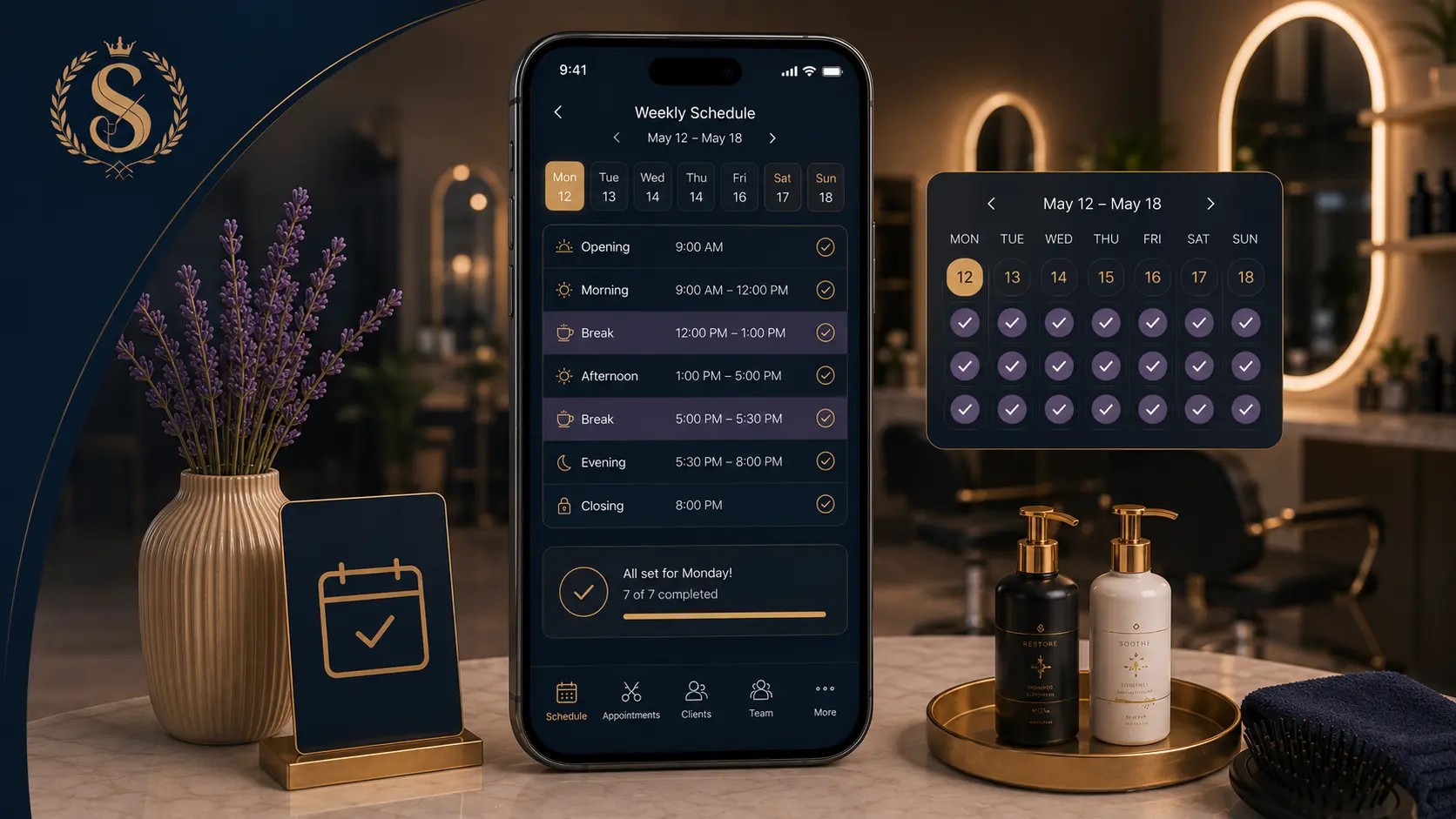
In Styloving, working hours are connected to staff availability and booking slots. Staff can have enabled days, start and end times, and breaks. The appointment calendar can then show closed days, visible staff columns, and bookings that sit inside real availability.
A setup flow could be:
1. Add the salon's country and timezone. 2. Add active staff members. 3. Set weekly working hours for each person. 4. Add breaks that should block booking. 5. Assign services to the correct staff. 6. Open the booking page and test a short service and a long service. 7. Review the day calendar to confirm no slots appear outside real hours.
Working hours checklist
Use this before sharing your booking link:
- Salon public open days are correct.
- Salon closed days are clear.
- Every active staff member has working days.
- Start and end times are realistic.
- Breaks are added before clients can book.
- Long services fit before the end of the shift.
- Staff who are inactive are not bookable.
- Services are assigned to staff who can perform them.
- "Any available staff" respects working hours and breaks.
- The booking page has been tested on mobile.
- The day calendar has been checked for odd gaps or overlaps.
FAQ
Should salon opening hours and staff hours be the same?
Not always. The salon may be open longer than one staff member's shift. Online booking should follow the staff member who can perform the service.
Should breaks appear to clients?
Clients do not need to see the reason for unavailable time. They just should not be able to book during it.
How often should working hours be reviewed?
Review them weekly if your team changes often. If schedules are stable, review them whenever staff availability or services change.