Short answer
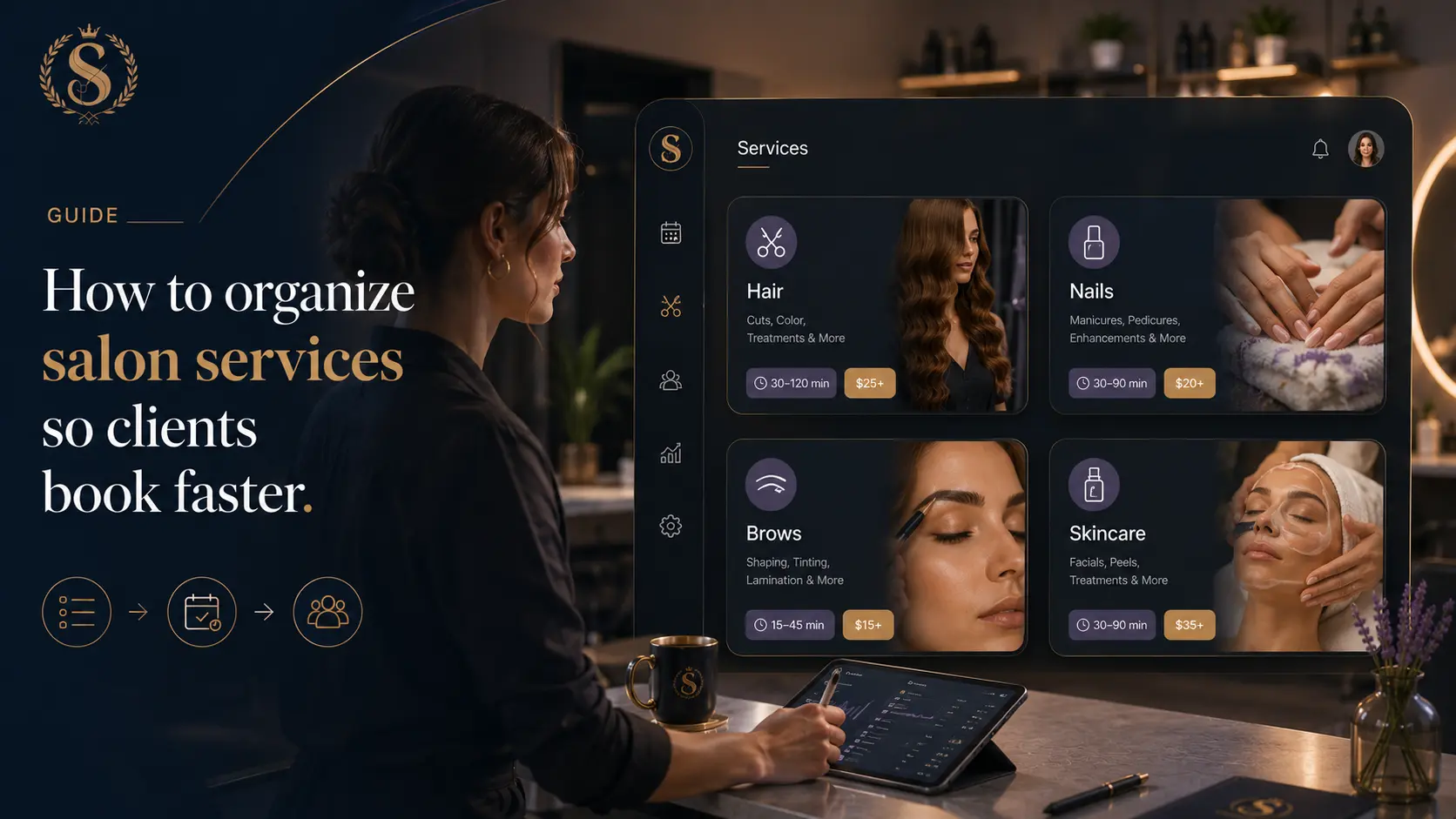
Clients book faster when your service menu answers three questions immediately: what the service is, how long it takes, and whether it is the right option for them. A good online salon service menu should be grouped by category, written in client-friendly language, and limited to choices that are clear enough to book without a long explanation.
If clients have to compare too many similar services, guess the difference between names, or message you before choosing, the menu is slowing bookings down.
Who this is for
This guide is for salons, barbers, nail studios, brow artists, lash technicians, skincare rooms, and beauty professionals who want a cleaner online booking flow.
It is especially useful if clients often ask "which one should I book?" even though the service already exists on your list.
Why salon service menus become confusing
Most service menus grow naturally. A salon starts with a few core services, then adds variations, add-ons, seasonal offers, special techniques, and staff-specific options. That makes sense internally, but it can become hard for clients to scan.
Common problems include:
- Services named for staff language instead of client language.
- Too many versions of the same service.
- Add-ons listed as full appointments.
- Missing durations or prices.
- Categories that mix different client goals.
- Services that should require consultation but are bookable without context.
The goal is not to remove every detail. The goal is to put details in the right place so the client can make a confident choice.
A simple service menu framework
Start with the client goal, then build your menu around it.
| Client goal | Better category examples |
|---|---|
| Change or maintain hair | Haircuts, color, styling, treatments |
| Maintain nails | Manicure, pedicure, gel, nail art, add-ons |
| Improve skin | Facials, peels, consultation, treatment packages |
| Maintain brows/lashes | Brows, lashes, tinting, maintenance |
| Book a quick repeat | Popular services, maintenance, follow-up |
For each service, write:
- A clear name.
- A short description.
- A realistic duration.
- The price or starting price.
- Whether the client should book a consultation first.
For example, "Color retouch" is clearer than "Regrowth service." "Gel manicure with removal" is clearer than making the client choose "gel" and then remember to add removal separately.
Step-by-step: clean up your service list
1. Export or write down every service
Put every current service into one list. Include services from your booking app, Instagram highlights, printed price list, and anything staff still book manually.
Do not edit yet. First, see the full mess.
2. Merge duplicates
Look for services that mean almost the same thing to a client. If the only difference is a small internal detail, combine them or explain the difference in the description.
Good candidates to merge:
- "Ladies haircut," "haircut," and "cut and finish" if they are effectively the same booking.
- Multiple "consultation" options that use the same time slot.
- Add-ons that should be attached to a main service.
3. Separate bookable services from notes
Not everything belongs as a separate bookable service. Some items are better as descriptions, add-ons, or staff notes.
Make a service bookable only when it needs its own duration and calendar slot.
4. Put popular services first
Clients should not need to scroll through every special option before finding the common booking. Put your most frequent services near the top of each category.
5. Use descriptions to prevent wrong bookings
A short description can reduce messages and rebooking mistakes.
Example:
Root color maintenance for existing color clients. If you need a major color change, book a consultation first.
That sentence can save the salon from a client booking a short slot for a complex transformation.
Example: a Styloving service setup workflow
In Styloving, a salon can add services with name, description, duration, price, category, and active status. The owner can start with a simple menu such as:
| Category | Service | Duration | Price |
|---|---|---|---|
| Haircuts | Cut + styling | 45 min | 65 |
| Color | Color retouch | 90 min | 120 |
| Treatments | Deep conditioning | 30 min | 35 |
| Nails | Gel manicure | 60 min | 48 |
The important part is that the booking flow uses those details to show clients realistic options. If a service takes 90 minutes, the calendar should reserve 90 minutes. If a service is not ready to book online, it can stay inactive until the salon is ready.
Service menu cleanup checklist
- Remove duplicate services.
- Put the most booked services first.
- Use client-friendly names.
- Add short descriptions for confusing services.
- Check every duration against real appointment time.
- Keep consultation-required services clear.
- Move add-ons under the right main service.
- Hide services that are not ready for online booking.
- Make one test booking after editing the menu.
Template: client-friendly service entry
Use this structure for every service:
Service name:
Category:
Duration:
Price:
Short description:
Who should book this:
Who should book a consultation instead:
Staff who can perform it:
FAQ
How many services should a salon show online?
Show enough for clients to book the services they already understand. If a service needs a conversation first, keep it as a consultation or explain it clearly before making it bookable.
Should add-ons be separate services?
Only if the add-on needs its own time slot or can be booked alone. Otherwise, keep it attached to a main service or explain it in the service description.
Should service names include prices?
Usually no. Keep the name clean and show the price in the price field. That makes the menu easier to update later.