Short answer
A confusing salon service menu makes clients stop and think too much. If clients cannot tell which service they need, how long it takes, what it costs, or whether it is right for them, they are more likely to message you, delay booking, or choose another salon with a clearer path.
The fix is not always fewer services. The fix is clearer names, cleaner categories, realistic durations, and simple booking rules.
Who this is for
This guide is for salon owners, barbers, nail techs, brow artists, skincare studios, and beauty professionals who get too many messages like:
- "Which one should I book?"
- "Is this for new clients?"
- "How much is it really?"
- "Can I add this on?"
- "How long will it take?"
If your clients need to ask before booking, your service menu may be doing extra work against you.
Why service menus become confusing
Most salon menus grow naturally. You start with a few services, then add seasonal offers, add-ons, staff-specific services, package names, price changes, and notes for special cases.
Over time, the menu can become clear to the owner but unclear to a new client.
Common problems include:
- Service names that sound similar.
- Prices that say "from" without enough context.
- Add-ons listed as full appointments.
- Consultation-only services mixed with bookable services.
- Staff-specific services shown to everyone.
- Durations copied from old habits instead of real calendar time.
- Descriptions written for professionals instead of clients.
When the booking page asks clients to decide from that list, confusion turns into friction.
Service-menu mistakes that reduce bookings
1. Too many services at the same level
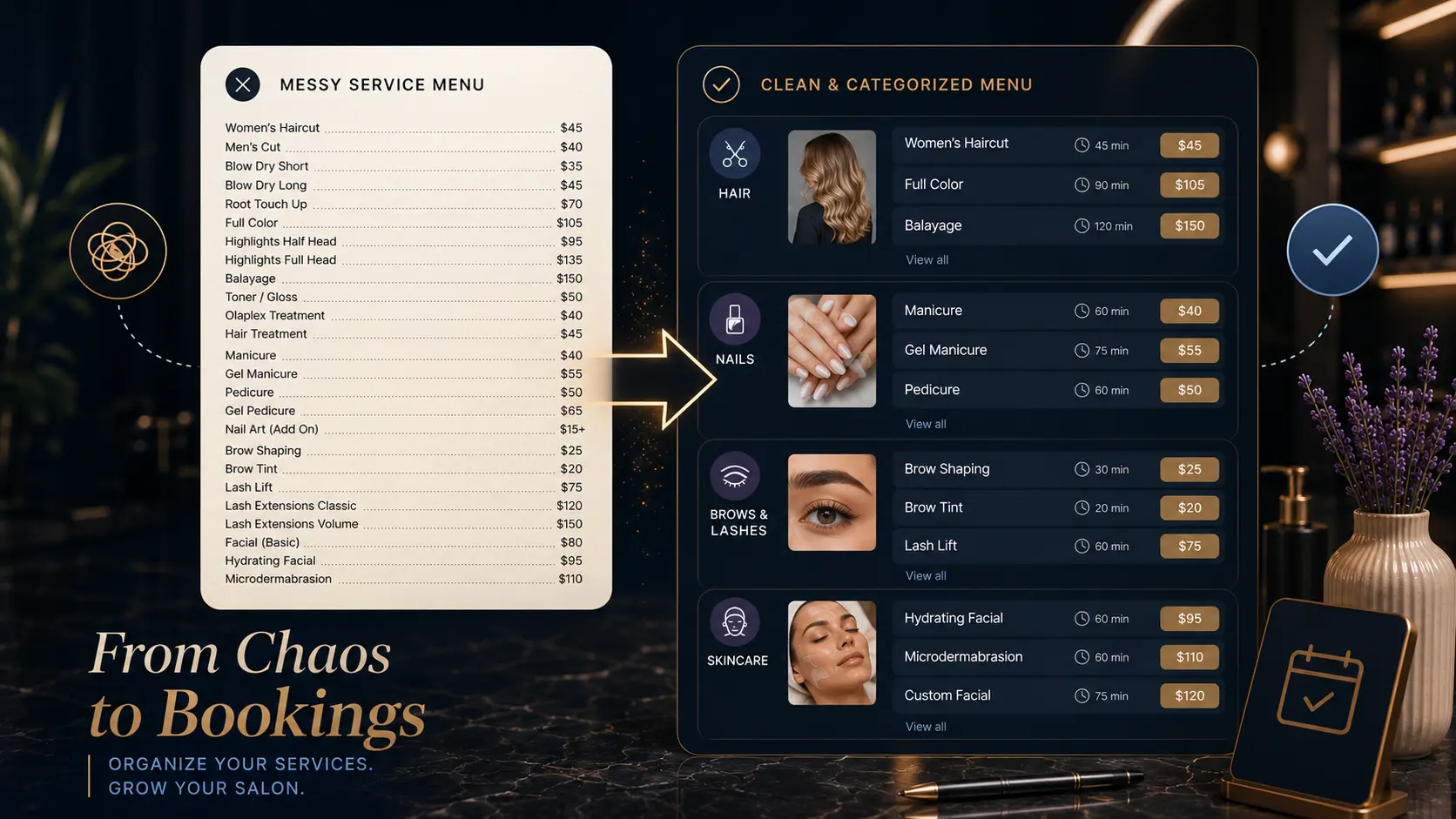
If every service appears in one long list, clients have to scan everything. A better structure groups services into categories such as haircuts, color, nails, brows, skincare, waxing, or consultations.
Categories help clients make one decision at a time.
2. Service names only staff understand
Internal names may be fast for your team, but confusing for clients. A client may not know whether they need a toner, gloss, root melt, refresh, maintenance color, or correction.
Use names that describe the client outcome, then add professional detail in the description.
3. Add-ons that look like standalone appointments
If "nail art", "deep conditioning", or "toner" can only happen with another service, make that clear. Otherwise clients may book only the add-on and leave you with a broken calendar.
4. Missing duration logic
Online booking needs time, not just price. If a service takes 45 minutes for one staff member and 75 minutes for another, the setup should reflect that or the calendar will drift.
5. Unclear first-visit rules
Some services should not be booked by new clients without consultation. If that rule lives only in your memory, online booking can create risky or unrealistic appointments.
A clearer service menu framework
Use this simple structure before publishing services online:
| Menu layer | Question it answers | Example |
|---|---|---|
| Category | What type of service is this? | Hair color |
| Service name | What should the client choose? | Root retouch |
| Description | Who is this for? | Maintenance color for existing root growth |
| Duration | How much calendar time is needed? | 90 minutes |
| Price | What should the client expect? | 120 or from 120 |
| Booking rule | Can this be booked online? | Existing clients only |
| Staff | Who can perform it? | Mia, Olivia |
If you cannot fill in those fields, the service probably needs cleanup before it goes online.
Example using a Styloving workflow
In Styloving, a salon can create service categories, add client-facing service names, set durations and prices, and assign services to the staff members who can perform them.
A cleaner setup could look like this:
- Category: Hair color
- Service: Root retouch
- Duration: 90 minutes
- Price: From 120
- Staff: Color specialists only
- Description: For existing color clients who need root maintenance. Not for color correction.
That kind of setup helps the client choose faster and helps the calendar stay realistic.
Service-menu cleanup checklist
Before publishing your services, check:
- Every service has a clear category.
- Similar services have descriptions that explain the difference.
- Add-ons are marked as add-ons or combined with the right services.
- Durations reflect real appointment time.
- Prices are clear enough for clients to decide.
- New-client restrictions are visible.
- Staff-specific services are assigned to the right people.
- The list is easy to scan on mobile.
FAQ
Should I remove services to make the menu simpler?
Not always. Sometimes you only need better grouping and clearer names. Remove services only if they are outdated, rarely booked, or better handled manually.
Should every salon service be bookable online?
No. Complex, risky, or consultation-first services can stay manual. Online booking works best when the client can choose confidently without a long explanation.
How many categories should a salon booking menu have?
Use enough categories to make scanning easier, but not so many that each category has only one service. Most small salons can start with 4 to 8 practical categories.